Author: elvisboats

Short Version: I'm married to the amazing (and amazingly forgiving) Jennifer, proud possessor of two amazing kids, crazy about all things trouty with fly fishing. I'm an Application Development Manager with Microsoft, and am based out of Portland, Oregon. Long Version: I grew up in Oregon, and moved down to California with the original goal of finishing my education in Civil Engineering, but I found application development and RDBMS systems much more exciting! I do miss the mountain biking in California and the awesome Mexican food, but Oregon is my home and I have never regretted moving back to start a family. Plus it gives me more time for fly fishing for trout and steelhead on the beautiful Deschutes river in central Oregon! ;-) Working for Microsoft has by far been the best experience of my professional life; it's great working with a group of people that are passionate about writing good code and continually improving development practices and firepower. Past assignments have included Providence Health Plans, Kroger, and managing a .NET development team at Columbia Sportswear. Working at Columbia in particular gave me a great customer-side perspective on the advantages that Azure offers a fast-moving development team, the dos and don’ts of agile development/scrum, and the cool rich Ux experiences that SPAs (Single Page Applications) can offer with Breeze, OData, WebAPI, and modern Javascript libraries. Microsoft did a fantastic job of engaging with Columbia and understanding our background and needs; I witnessed their teams win over an initially hostile and change-averse culture. The end result was a very satisfying and mutually beneficial partnership that allowed Columbia to build dynamic applications and services using best-of-breed architecture. I’m a MCDBA and a Certified Scrum Master.

More WebDeploy adventures in Visual Studio…

Here’s a more coherent chain of events for setting up WebDeploy:

  1. Set up IIS (in Windows 8 this is done thru the “Add roles and features” in the Dashboard part of Server Manager. Very nice!) Also make sure ALL the features for .NET Framework 4.5 are set up.
    1. While you’re there, use Search to find inetmgr and add it to your Start/taskbar.
  2. Open up IIS and R-click once you expand Sites\Default Web Site to the wwwroot folder (typically c:\inetpub\wwwroot).
    1. Create a folder named after your website.
    2. Back in IIS, R-click on the folder name under Default Web Site and select Convert to Application.
  3. Note – it’s at this point that I hit an issue with the overly strict security settings in IE on the Windows Server 2012 QA/PROD boxes. So, to get around this, we abandon crappy IE and cut over to Google!
    1. Open up IE tools menu and add https://dl.google.com and www.google.com to the list of Trusted Sites.
    2. Go to Google.com and download Chrome. Ah, THAT’S better! So long IE!!!!
  4. Download the Web Platform Installer (this should be a part of IIS; it usually will prompt you to run it if you open up inetmgr from scratch).
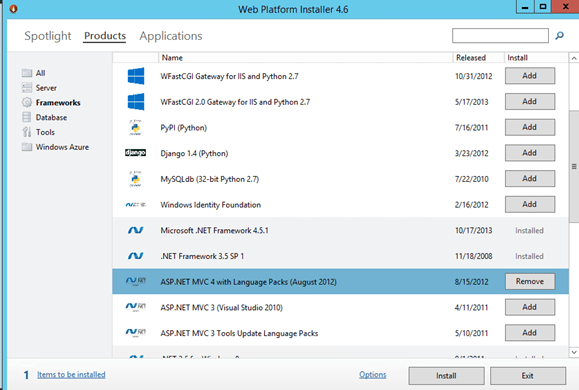
  5. In the Web Platform Installer I made sure – in the Frameworks tab – that the ASP.NET MVC 4 was set up (along with .NET Framework 4.5):
  6. I also made sure that the IIS Recommended Configuration and the Web Deploy 3.5 options were set up:

  7. If you’re prompted above for Web Deploy 3.5, the Typical configuration is fine.
  8. Time to doublecheck. Open up Control Panel, Administrative Tools – and make sure that Web Deployment Agent Service is running.
  9. If you open up your new {websitename} folder under wwwroot, you’ll also see that IIS_IUSRS for the local machine has read/write privileges. Excellent!
  10. Now back into Visual Studio, and select Publish. Give your profile a name…

\

The Databases section is interesting – here’s where you can replace on publish your connection strings with the correct database entry for QA /PROD, and test connection strings.

Caveats:

  • Note that if you’ve set up IIS before installing ASP.NET Framework 4.5, you MAY need to run aspnet_regiis to register the framework with IIS. (I didn’t have to do that). If you come across this issue, check some of the notes here.
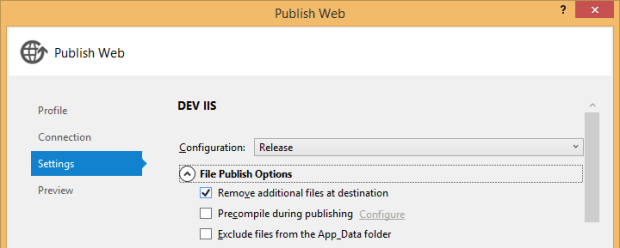
  • You also want to make sure in the Settings section that you select the checkmark to Delete Additional Files upon Publish. In old-school x-copy deployment terms, this means the same thing as deleting the destination (target) folder before you copy over files.

Found some good notes here on setting up IIS on a completely blank IIS server: http://www.iis.net/learn/get-started/whats-new-in-iis-8/installing-iis-8-on-windows-server-2012. It really is (relatively) painless compared to what it used to be; typically your issues will be insufficient permissions on the local machine/network to handle remote connections.


OwinStartup red herring


So I tried a build a few days ago and got this message:

The following errors occurred while attempting to load the app.
– The OwinStartup attribute discovered in assembly ‘PCS2’ referencing startup type ‘PCS2.Startup’ conflicts with the attribute in assembly ‘PCS’ referencing startup type ‘PCS.Startup’ because they have the same FriendlyName ”. Remove or rename one of the attributes, or reference the desired type directly.

You can get freaked out about this message and start yanking Owin and trying to debug the FriendlyName error message, or – simply put – understand that this is happening because you’re doing a build to the same destination point on a QA webserver from a project with a different name. (In this case, I’d cut over from an older project PCS2 to a new project, new assembly called PCS). And, WebDeploy’s Publish doesn’t clear out everything in the target folder in IIS – and artifacts there are interfering with your post-publish IIS settings. Just remote desktop onto the server and blow away the contents of that web app and re-publish, and that should do the trick.


Give me the drama!

There’s two reasons why we watch sports – drama and humor. I remember the time I watched John Elway’s legendary helicopter spin to give Denver a critical first down against Green Bay. I’d never taken the NFL seriously before that, but the sight of a 37-year old John Elway putting his health on the line like that sucked me in. There’s been a lot of great NFL moments since then – and a lot of boring moments too. He may be a genius, but I’ve got a real grudge against Bill Belicheck for turning the postgame and pregame interviews into a droning recital of meaningless clichés (It is what it is, blech).

Anyway, I’m still hoarse this morning from screaming after that NFC championship game between the 49ers and the Seahawks. That was a great contest between two very evenly matched teams, where it really came down to the final play – and it felt like the 49ers, driving effortlessly against the most feared defense in the NFL, had it in their hands. Then, the tipped pass by Sherman in the endzone on a fade route to Crabtree.

That game had it all – drama, strategy, everything you’d ever want. And the crazy postgame interview with Richard Sherman? “I’m better at life than you” Richard Sherman? Eyes bugging out, spittle flying, venting raw emotion all over a deer-in-the-headlights Erin Andrews? Classic Mean Gene. I mean, it was epic – after spending the previous five minutes jumping up and down and screaming, now I was laughing until I choked. Watching it, I knew it was a classic – right alongside the Elway game. You can say it was classless, and that he was being a bad winner – both are true. But if you watched that game, and understood how violent and emotional that ending was – and then have a microphone thrust in your face – it makes perfect sense.

Everyone is piling on Richard Sherman today, because that’s the media. But I remember thinking at the time, this is what sports is about. It’s a game, and it’s supposed to be fun. He’ll take a beating this week and be cast as the bad guy … but from my standpoint, thanks for keeping it real.


Web Deploy hijinks

I always used to do a file system x-deploy to copy a web app from local out to QA/PROD. But that involved manually changing the web.config and is fraught with manual steps (i.e. errors). So, if you’re getting errors on running deployments, try the following to access Web Deploy 2.0

  1. Remote desktop onto the target IIS webserver
  2. Go into IIS Manager
  3. Right click on the site, and select Deploy, “Configure Web Deploy Publishing”
  4. Click on Setup – > it will create a PublishSettings file locally on the desktop. Copy this to your local system and use this in Visual Studio (manage publish settings in Publish)

Web deployment notes: http://blogs.iis.net/msdeploy/archive/2011/04/05/announcing-web-deploy-2-0-refresh.aspx

From this article – find out if your settings are correct:

  • Click on the Web Site in IIS – select Features tab.
  • IIS Manager permissions icon.
  • IIS Manager Permissions, Action, Allow User – and add your user name.


Messing around with ListViews

I do like this simple walkthrough here on ListViews. Note it’s much easier to scaffold this stuff without sprocs – MSFT seems to be (esp with innovations in EF, Code-First and POCO) moving away from old-school procedural logic in our business layer.http://msdn.microsoft.com/en-us/library/bb515102(v=vs.100).aspx (there’s an accompanying article showing inserts/updates).

Notice how easy VS makes it for us to scaffold out ListViews as we would a Controller/View in MVC using EF. Basically it’s a three step process:

  1. Drag on a ListView, and view it in Design Mode. click on the SmartTag on the right, and select Choose a data source. Fill in a SELECT statement.
  2. Select Advanced and generate Insert, Update, and Delete statements.
  3. Go back to Configure Listview in the smart tag and select the Enable Editing, Inserting, and Deleting checkboxes, and pagination if you swing that way.
  4. Treat yourself to a Banquet Beer. (added this last one)

VS adds in a TON of coding here without you having to lift a finger, or slave away over a hot stove writing sprocs. And, you can replace this down the road with sprocs if you so desire and use it as a template. Super groovy…

So, that’s good for generating plain vanilla listviews like the below. What if, shudder, you want to extend it a little?

I’m embarrassed to say, it took me a few hours yesterday to figure out which events I should hook into – and ListView has a TON of them – to update/save rows on my listview. I’m attaching the code below – suffice to say, the _DataBound, _ItemInserting and _ItemUpdating are your friends here. See the following code…. the main page is here.

More details – another halfway decent post: http://www.codedigest.com/Articles/ASPNET/105_EditUpdateDelete_and_Insert_in_ListView_Control.aspx