If you spend a lot of time in the terminal, GitHub Copilot CLI feels surprisingly natural—almost like it’s always been missing from your workflow. In this post, I’ll walk you through the bare basics you’ll need to get started with using it. Please check out the references at the end as a good starting point for your journey!
Installation
Once its installed (using npm or winget, npm install -g @github/copilot for example) you should get a glorious 80s type CLI window by typing in the following:
copilot
Note here – the easiest path is to use GitHub Codespaces for zero setup. That preinstalls Python and pytest. Fork the repository to your GH account, and select Code > Codespaces > Create codespace on main
Try this as your first prompt:
Say hello and tell me what you can help with
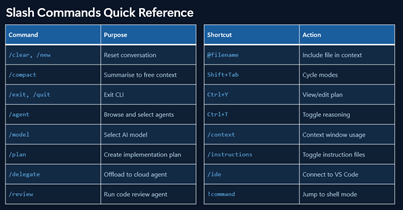
There’s some slash commands here you can play around with. We’ll be getting into the main ones a little later:
Your First Code Review
Let’s do a quick comparison of the different models available to us:
/model
Higher-multiplier models use your premium request quota faster, so save those for when you really need them. But let’s try our very first code review, so we can compare the output:
/review review the apis using gpt 5.4, opus 4..
This is a great way to see the differences between models and what they catch (and don’t catch). There is no clear leader at present between OpenAI, Anthropic, Google, etc – no single model does it all best.
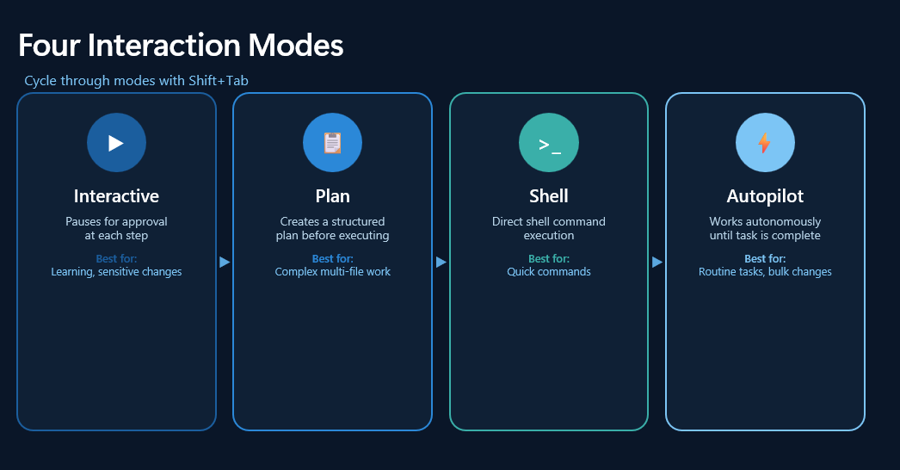
Four Interaction Modes
The key points here:
- Interactive: conversation and iteration
- Plan: design before coding
- Programmatic: one-off commands
So to experiment a little with these : (in copilot mode of course)
/plan Add search and filter capabilities/plan Add a "mark as read" command to the app/plan Add OAuth2 authentication with Google and GitHub providerscopilot -p "Write a function that checks if a number is even or odd"
And if you’re truly kicking the tires experiment with /ask mode:
Explain what a dataclass is in Python in simple termsWrite a function that sorts a list of dictionaries by a specific keyWhat's the difference between a list and a tuple in Python?Give me 5 best practices for writing clean Python code
Working with Code
These are some sample prompts you can try yourself in working with a new application.
Onboarding
Explain what FILENAME doesReview all files in PROJECTHow is logging configured in this project?What's the pattern for adding a new API endpoint?Explain the authentication flowWhere are the database migrations?Compare @FILE1 and @FILE2 for consistency
Analyzing files together reveals bugs, data flow, and patterns that are invisible in isolation. If I would have checked books.py singly, it would have been – cool! Syntax is fine, types valid, style is clean…
With @FILE1 @FILE2 - How do these files work together? What's the data flow?In one paragraph, what does this app do and what are its biggest quality issues?Give me an overview of the code structureHow does the app save and load books?
Test Driven Development
Write failing tests for the user registration flowNow implement code to make all tests passCommit with message "feat: add user registration"
Code Review
/review Use Opus 4.5 and Codex 5.2 to review the changes in my current branch against `main`. Focus on potential bugs and security issues.Review FILE and suggest improvementsAdd type hints to all functionsMake error handling more robustReview all files in @PROJECTNAME for error handlingFind security vulnerabilities that span BOTH files
Refactoring
i want to improve FILENAME. what does each function in this file do?Add validation to FUNCTION() so it handles empty input and non-numeric entriesWhat happens if FUNCTION() receives an empty string for the title? Add guards for that.Add a comprehensive docstring to FX() with parameter descriptions and return values
Git Workflows
What changes went into version `2.3.0`?Create a PR for this branch with a detailed descriptionRebase this branch against `main`Resolve the merge conflicts in `package.json`
Bug Investigation
The `/api/users` endpoint returns 500 errors intermittently. Search the codebase and logs to identify the root cause.
Putting it All Together
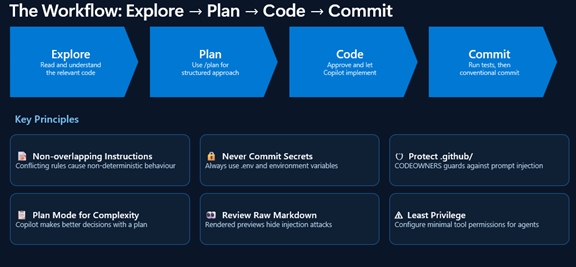
So your workflow might look something like the following:
- Explore: “Read the authentication files but don’t write code yet”
- Plan: “/plan Implement password reset flow”
- Review: “Check the plan, suggest modifications”
- Implement: “Proceed with the plan”
- Verify: “Run the tests and fix any failures”
- Commit: “Commit these changes with a descriptive message”
A Few Words about Agents
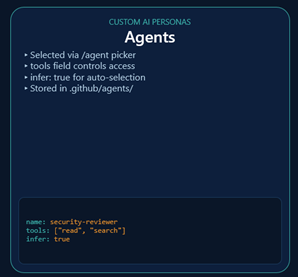
So we’ve already used agents! When I enter in copilot mode:
/plan Add input validation in the app on X field
That’s using an agent!
So for example – and this is a power tip with agents – try this: When you need to investigate a library, understand best practices, or explore an unfamiliar topic, use /research to run a deep research investigation before writing any code:
/research What are the best Python libraries for validating user input in CLI apps?
What Are Skills?
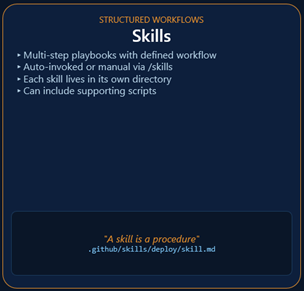
Agent Skills are folders containing instructions, scripts, and resources that Copilot automatically loads when relevant to your task. Copilot reads your prompt, checks if any skills match, and applies the relevant instructions automatically.
These can be invoked command line, for example:
/generate-tests Create tests for the user authentication module/code-checklist Check books.py for code quality issues/security-audit Check the API endpoints for vulnerabilities
And you can ask copilot directly what skills were used:
What skills did you use for that response?What skills do you have available for security reviews?
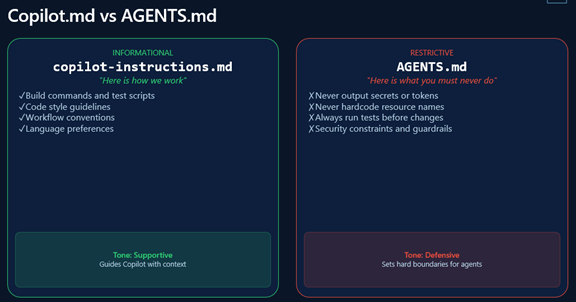
Last – why would we use an instruction file vs an agent?
Best Practices and Final Thoughts
As the official documentation reminds us – the following should become second nature the more you work with GitHub Copilot CLI:
- Set Custom Instructions: Use .github/copilot-instructions.md to define project-specific coding standards and build commands.
- Use /plan for Big Tasks: Always generate an implementation plan for complex refactors before writing any code. A good plan leads to dramatically better results. (this is especially true now that we’ve moved to usage based billing. More to come!)
- Offload with /delegate: Use the cloud agent for long-running or tangential tasks (like documentation) to keep your local terminal free.
- Save prompts that work well. When Copilot CLI makes a mistake, note what went wrong. Over time, this becomes your personal playbook.
And I’ll throw in a few observations of my own:
- Code review becomes comprehensive with specific prompts
- Refactoring is safer when you generate tests first
- Debugging benefits from showing Copilot CLI the error AND the code
- Test generation should include edge cases and error scenarios
- Git integration automates commit messages and PR descriptions
References
Videos:
- Try this first! – Dan Wahlin’s excellent 28 minute intro video: https://www.youtube.com/watch?v=fgHk28xljYw. Check out https://gh.io/copilot-cli-course for demos etc. Dan’s my hero and I am indebted to him for being able to break down complex topics into simple pieces.
- The Full “Beginners” Playlist: GitHub Copilot CLI for Beginners Playlist
- Background Agents Demo: Run code generation in the background with GitHub Copilot coding agents
- Episode 1 (Getting Started): Getting started with GitHub Copilot CLI | Tutorial for beginners
Documentation
- VS Code CLI Sessions: Copilot CLI sessions in Visual Studio Code
- Official Hands-on Repo: GitHub Copilot CLI for Beginners – GitHub Repository
- Comprehensive Guide: From idea to pull request: A practical guide to building with GitHub Copilot CLI
- Series Introduction: GitHub Copilot CLI for Beginners: Getting started with GitHub Copilot CLI
- Workflow Integration: 5 ways to integrate GitHub Copilot coding agent into your workflow

