Uncategorized

Data warehousing and working within structures

I saw the great Hilary Hahn a few days ago at the Oregon Symphony.

The amazing thing about a great concert violinist like Hilary is, they’re fantastic innovators – but always within bounds. You see her rattling off 45 minutes (more or less straight) of beautiful, expressive music – but always within the framework of the larger orchestra. They work in perfect synch.

It’s similar with data warehousing. Twenty or so years into my career, I’ve seen it done wrong multiple times (and right only a few) – and it always comes down to not working within the framework of what analytical databases are designed to do. It’s MUCH cheaper to not try to make up your own organizational definition of what data warehousing is… yet that tends to be a strange kind of compulsion that dogs many DW projects. It’s odd why so many companies choose to go down this route. You NEVER see people quibbling over relational rules with OLTP systems the way we do with analytical stores!

Microsoft’s BI best practices doc is pretty plain vanilla but it does break down DW into these pieces. Failing to understand any of these could mean wasting many, many man-years of effort and millions of dollars in rewrites.
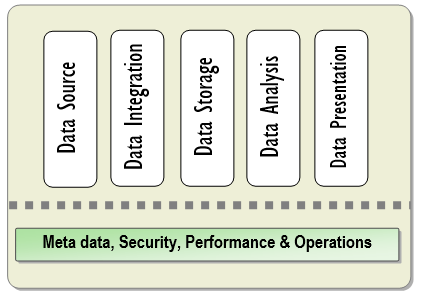
The guide is, sadly, a real snoozer. I’ll break it down in a few sentences:

  1. Data source is where get our data from. (Duh.)
  2. Data integration is a layer that handles data extraction and cleansing.
    1. It will likely contain both a staging area (a temporary area that houses raw tables from the source) and…
    2. a loading area (data is now cleansed, validated, transformed, and in a consumable format by a DW).
  3. A data storage area that holds your dimensional model, including partitions for truly huge tables (yes, you’ll have these). Heavily indexed.
  4. Data analysis area holding OLAP cubes from SSAS/Cognos/etc and other data mining business logic.
  5. Data Presentation, including dashboards, flat reports, and moldable data (Powerpivot yay!)

Let’s not get bogged down in details here, but you want to have a staging area that contains your raw tables (and deltas) – this looks EXACTLY like the source data, without relational ties (or even indexes to keep load times to a minimum). Sometimes I drop and add indexes post-load to cut down on ETL times. Your loading area contains consumable objects that are multi-purpose and generic – think a “Products”, “Customers”, and “Suppliers” set of tables, where each row defines a customer, a supplier, etc. This is a relational store but not a OLTP system- you won’t (or shouldn’t) be seeing tons of lookup tables here. Think very flat, breaking some rules with denormalization (i.e. ProductCategory1, ProductCategory2, etc) in the name of performance. The goal here is a set of objects that will be a “one stop shop” of data, hopefully robust enough to survive organizational change with a minimum of bloodshed. For example, currently we’re writing a DW based on an ERP that we’re ‘pretty sure’ will be going away in three months. But I’m reasonably sure, even if we cut over to SAP, that I’ll still have a table of “Items”, “Products”, etc. By having a staging area, I minimize disruption to our users that are becoming dependent on our reports.

So breaking this down even further, for a data warehouse you need:
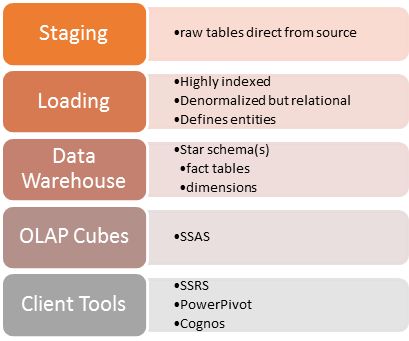
It looks like this:

  1. A staging area separate from your source data.
    1. Format: Raw tables exactly like your source tables, maybe split out using schemas.
  2. A loading area that contains a canonical view of your data from an organizational/decisionmaking standpoint.
    1. Format: Denormalized tables that define specific entities, highly indexed, relational but not hyperrelational.
  3. A storage area with your star schema.
    1. Format: A central fact table(s) and dimensional tables for slicing. You can have many fact tables and several different data stores to present your data in a way that’s most consumable by different departments/groups.
  4. A set of OLAP cubes for consumption by your client tools.
  5. Client tools so your users can slice and dice data themselves instead of bogging your development teams down with reporting.

Links

Yeats

The Song of Wandering Aengus – Yeats


I WENT out to the hazel wood,    

Because a fire was in my head,    

And cut and peeled a hazel wand,    

And hooked a berry to a thread;    

And when white moths were on the wing,

And moth-like stars were flickering out,    

I dropped the berry in a stream    

And caught a little silver trout.    


When I had laid it on the floor    

I went to blow the fire a-flame,

But something rustled on the floor,    

And someone called me by my name:    

It had become a glimmering girl    

With apple blossom in her hair    

Who called me by my name and ran

And faded through the brightening air.    


Though I am old with wandering    

Through hollow lands and hilly lands,    

I will find out where she has gone,    

And kiss her lips and take her hands;    

And walk among long dappled grass,    

And pluck till time and times are done,    

The silver apples of the moon,    

The golden apples of the sun.    


Console heck.

For the record, I hate writing console applications. There’s just only so much magic you can pull without a UI to interact with. But, sometimes, there’s no alternative. Take this problem set:

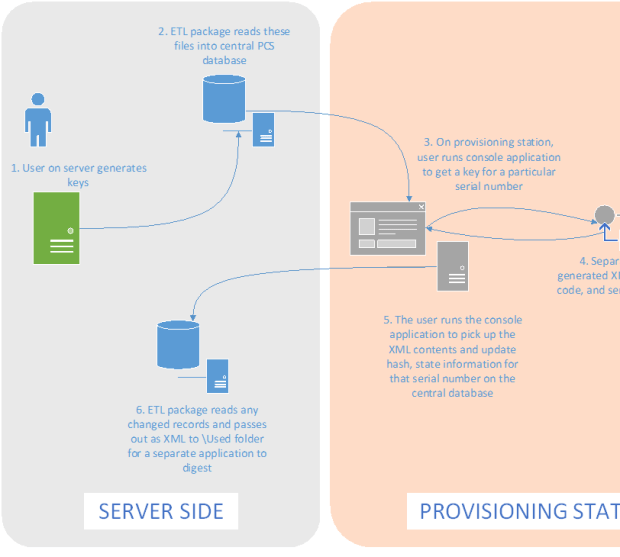
Basically this is a software key provisioning process, where a central server acts as a key repository – holding a pool of allocated keys. There could be 20 or more provisioning stations that need to pull down these keys, one at a time, and assign it to a serial number – add a hash code, and pass it back to the central database for more processing. Above, we have a “user” running this console application – but since it will be hands-free, writing this as an ETL package (on the server side of things, to handle license requests and keep track of assigned serial numbers) for the server side, and pairing it up with a simple console application that can get kicked off command-line on the individual stations made sense.

The actual implementation console-side was relatively easy – so much so I won’t put it here. The console app calls a sproc to receive a datatable and passes it out as an XML file; it’s then decorated with some attributes (updating the process state and adding a hash), and then it’s picked up again and the record is updated back to the database. Pretty beaten down ground there.

The codeset and SQL is here (except the SSIS) – FFKI

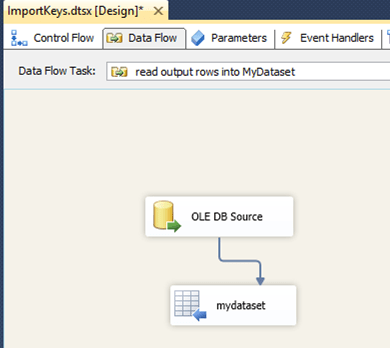
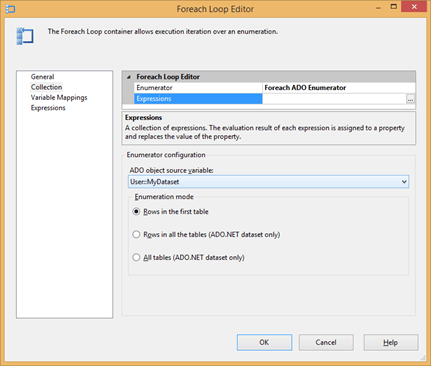
However, the Output SSIS package was funky. Following the steps in this post, I added a data flow to output to an ADO.NET recordset, and then added a ForEach loop against that source.

I originally was going to do a database call within the for/each loop – but that seemed wasteful. I mean, the data is RIGHT THERE. Why are we calling the database twice – once accessing the records in table form to form a recordset, and a second time to form XML and output to a file? So, shudder, I used a cursor.

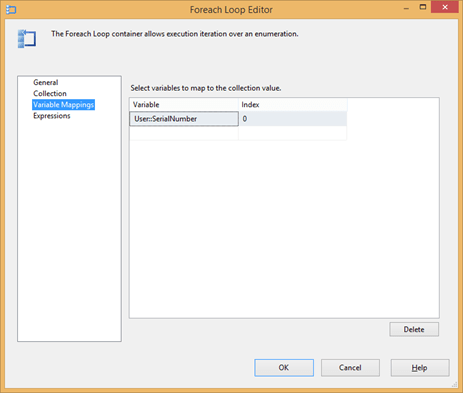
Tough to say this, but the cursor is actually very performant and works fine as the source for a ADO.NET recordset. This can then be set in a variable called @SerialNumber and @OutputXML in a ForEach loop – and that’s what our script works against. Plain and simple, it accepts it – and writes it out to a file. Easy peasy. We could have updated it as a set but I didn’t want dirty records (in case some were inserted or updated to 1 mid-process) – so that’s done as part of the loop individually. (Another solution is to have yet another ToUpdate status of 2 being mid-process and 3 being done.)

Little things like setting the opening command line arguments I’d forgotten (even how to generate it using csc CMD-side. How quaint!)

SSIS Package Joy

The SSIS package code. Very spaghetti but it works; I don’t think the structure of VB in SSIS encourages modular programming. (Yes it’s a bit of a copout. I found the same thing true with the console app. If there’s no reuse potential and one Main() entry point, what’s the sense in splitting it out into umpteen methods and separate classes?)

Basic order of events:

  1. Reads XML from FilePath + FileName using StreamReader
  2. Adds <Keys> root using FileContent.Replace
  3. Sets up an archive and process folder using ArchivePath (or ProcessPath) + FileName. We could have used FilePath but it’s possible they’ll want separate file drops in the future.
  4. Writes to ProcessPath XML file using StreamWriter, and moves orig file to archive destination.


public
void Main()

{


String ErrInfo = “”;


String FilePath = Dts.Variables[“User::FilePath”].Value.ToString()+ Dts.Variables[“User::FileName”].Value.ToString();


//MessageBox.Show(“Filename: ” + FilePath);


try

{


String FileContent; //Variable to store File Contents

FileContent = ReadFile(FilePath, ErrInfo);


if (ErrInfo.Length > 0)

{

Dts.Log(“Error while reading File “ + FilePath, 0, null);

Dts.Log(ErrInfo, 0, null);

Dts.TaskResult = (int)ScriptResults.Failure;


return;

}


//FileContent Before Replace;


//MessageBox.Show(FileContent);


//Find and Replace –> Modify WHERE clause

FileContent = FileContent.Replace(


“<Key>”,


“<Keys><Key>”

);

FileContent = FileContent.Replace(


“</Key>”,


“</Key></Keys>”

);


//FileContent After Replace;


//MessageBox.Show(FileContent);

Dts.Variables[“User::FileContent”].Value = FileContent;


String ArchivePath = Dts.Variables[“User::ArchivePath”].Value.ToString() + Dts.Variables[“User::FileName”].Value.ToString();// +@”\Processed\” + Dts.Variables[“User::FileName”].Value.ToString();


String ProcessPath = Dts.Variables[“User::ProcessPath”].Value.ToString() + Dts.Variables[“User::FileName”].Value.ToString();


//MessageBox.Show(ArchivePath);


//Write the contents back to File


if (File.Exists(ProcessPath))

{


File.Delete(ProcessPath);

}

WriteToFile(ProcessPath, FileContent, ErrInfo);


if (ErrInfo.Length > 0)

{

Dts.Log(“Error while writing File “ + ProcessPath, 0, null);

Dts.Log(ErrInfo, 0, null);

Dts.TaskResult = (int)ScriptResults.Failure;


return;

}


//and move the orig files


if (File.Exists(ArchivePath))

{


File.Delete(ArchivePath);

}


File.Move(FilePath, ArchivePath);

}


catch (Exception e)

{

Dts.Log(e.Message, 0, null);

Dts.TaskResult = (int)ScriptResults.Failure;

}

}


public
String ReadFile(String FilePath, String ErrInfo)

{


String strContents;


StreamReader sReader;


try

{

sReader = File.OpenText(FilePath);

strContents = sReader.ReadToEnd();

sReader.Close();


return strContents;

}


catch (Exception e)

{


MessageBox.Show(ErrInfo);

ErrInfo = e.Message;


return
“”;

}

}


public
void WriteToFile(String FilePath, String strContents, String ErrInfo)

{


StreamWriter sWriter;


try

{

sWriter = new
StreamWriter(FilePath);

sWriter.Write(strContents);

sWriter.Close();

}


catch (Exception e)

{


MessageBox.Show(ErrInfo);

ErrInfo = e.Message;

}

}

Links of Note

I think, at this point, since I can’t read values at run-time from app.config – and I am out of time and need to move on – that I’ll add them as global variables, however hokey that is, directly in the class.

PowerPivot and the age of BI

So, I have this fatal weakness for data warehousing. OLAP is way cool! That being said, I HATE spending time in reporting tools. Excel is great… like 15 years ago. I want to drop tables out there in the DW, and hand it off for others to do the less-glamorous (and never-ending) work of report-writing and analysis. Every developer has to constantly fight against being pigeonholed as a “report developer” – to the point where in the past I’ve avoided putting SSRS on my resume. It’s just to easy to get sucked into that world – there’s always a need for report analysts, and it’s just not as creative as the application/database design work we love. Get in and get out, that’s my motto!

So, PowerPivot is super cool. This is a free add-in to Microsoft Excel, and it couldn’t be easier. Once data is delivered I can unleash my users on our unsuspecting data – it’s truly self-service – and work on bringing more data into my warehouse for them as requests spiral, giving me more power and money! Bwah-hahahaha!

I started with a handy dandy star schema – with a central fact table and a couple tables off of this. Here’s a nice script for creating a date dimension:dim date

From this, I generate a table every day that’s optimized for Excel to pull from. By this I mean, it’s one table, very heavily indexed. (I played around with having one Excel spreadsheet hold Purchase Orders, Work Orders, and this central table – and was treated to a ton of ‘exceeded connection’ errors and bad performance. Bad Dave for being greedy! So, this ended up being three spreadsheets.)

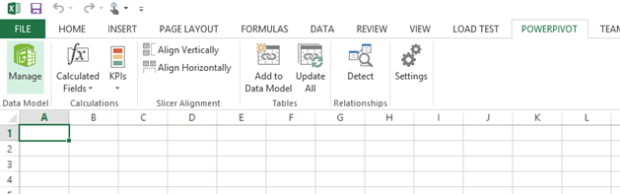
I go into Excel and click on the PowerPivot menu item, and select Manage.

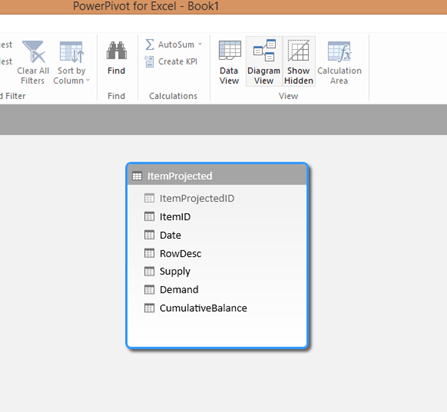
From here I select the From Database option and enter my connection info to my SQL Server box, and select my target table. Now I’m staring at this window:

This is our chance to hide or format contents. Here I right click on ItemProjectedID and hide that – it’s an identity field that the users we’ll never need – and if I wanted to I could change the format of the Supply/Demand/CumulativeBalance to Decimal.

It’s also worth noting that there’s a schema view. Here’s where I could add a hierarchy or a calculated field to dimension tables (like that Date dimension).

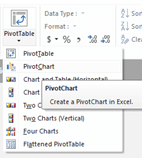
When I’m good and ready and the data table looks good, I select the PivotTable button. I could insert a split window with a chart at the bottom – but since our users just want a simple chart in this case, I’ll pick PivotTable.

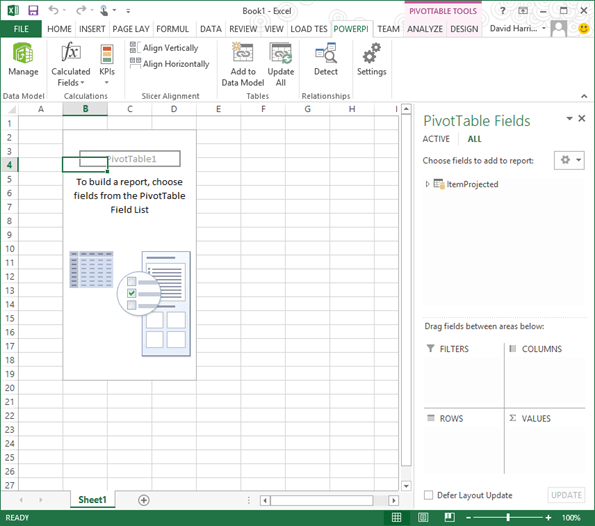
Hmm. Now I’m seeing the below.

Let’s go crazy. Expand your data table – in my case I dragged on my Supply, Demand, and Cumulative number fields to the Values area on the lower right of the page. Then I dragged some of my descriptive rows (like ItemID, Date, and the RowDesc field) to the Rows area. Now I’m seeing this:

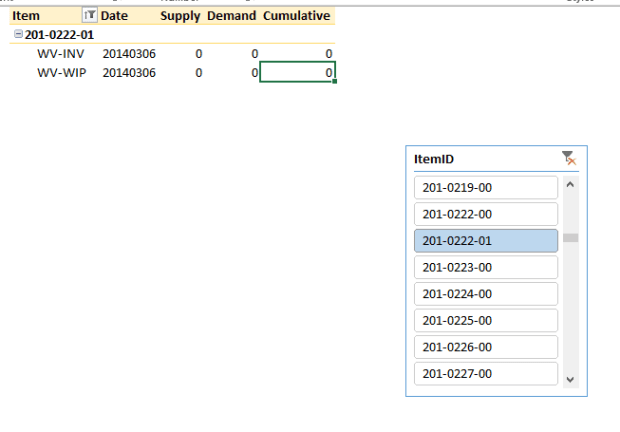
Muck around with the format a little bit. I found that when new fields dropped into a table I’d have to reconnect as if it was a new table – which is such a pain it’s better to create a new spreadsheet. But charts and graphs are awesome using this tool – think dashboarding – and if you save your XLS sheet out to a SharePoint document library (assuming your SP admin allows the Excel plugin) it looks and acts like a fancy-dancy dashboard with slicers:

The best part is, I don’t need to muck around with writing reports. I gave my users a table – and exposed it to them using Excel, a tool they know and are familiar with. They can drag and drop values and play with it as they see fit. I guarantee you, your users will love you – and you’ll be able to get back to the “real” work of writing data flows and fancy-schmancy UI’s.

Data warehouse design notes

It bears repeating, but every company I’ve ever worked for ends up doing data warehousing wrong – the failure rate must be close to 90%! And it really comes down to two mistakes:

  1. Trying to solve every problem right out the gate.
  2. It’s a slippery road from star schema -> snowflake -> hellhole.

In short, if you try making it too big or too fancy, you’re screwed. How do you avoid this?

  1. Start with a simple date dimension and one very simple report use case.
  2. Use this to get your tooling straight, including your BI / self service report tools.
  3. THEN start growing out more dimensions and more fact tables. But beware! Have an architect around who’ll beat people over the head when they want to start chaining tables together (i.e. turning it back into a normalized system). It’s my personal belief that a set of data marts, each serving a specific purpose, are FAR more useful and easy to maintain than a Goliath system that pleases no one.

I’ve attached the SQL for building out a Date dimension – this is the one dimension that’s a constant in every DW I’ve worked with. It’s a great big flat table representing every date you’ll ever need – so the database won’t have to think when you want to slice data by quarter (for example) or to find the first day of the week of a year.

Helpful Videos and Links on PowerBI and PowerPivot

SSIS goodness… kind of.

Man, it’s been a WHILE since I’ve worked with SSIS packages. Why, I remember when it was part of something called Business Intelligence Development Studio- and before that something else… now its part of SQL Server Data Tools, whatever that means. Still looks the same though as good ol’ SSIS (and DTS before that.) And there’s a part of me that enjoys it… most of me though just wants to wash my hands of the “plumbing” and get back to REAL programming. Something about writing VB code (Yes, I KNOW C# is available, you’re still working in a dated IDE!) just makes me feel icky.

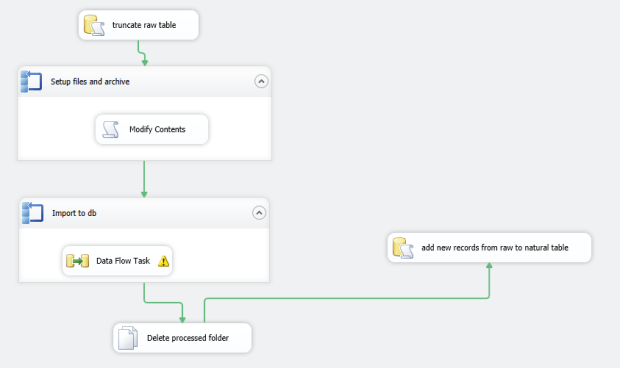
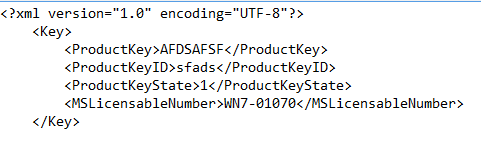
Here’s the process I hacked out. yes, I’m sure there’s a more elegant way to do it – but I was done in a few hours, and it seems elegant. I’m receiving an XML file like this:

This is an XML fragment, not a true XML document –it’s missing a root node. (I.e. should be <Keys><Key>, not just <Key>.) So, if you try to do a data transform directly against this, you’ll end up with no source columns.

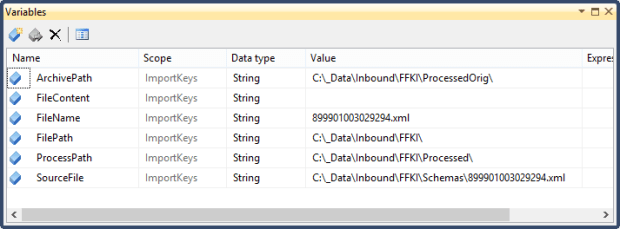
Create a SSIS package with the following variables:

So, I added a Script Task with the following variables passed in as R/W:

And the following script:


public
void Main()

{


String ErrInfo = “”;


String FilePath = Dts.Variables[“User::FilePath”].Value.ToString()+ Dts.Variables[“User::FileName”].Value.ToString();


//MessageBox.Show(“Filename: ” + FilePath);


try

{


String FileContent; //Variable to store File Contents

FileContent = ReadFile(FilePath, ErrInfo);


if (ErrInfo.Length > 0)

{

Dts.Log(“Error while reading File “ + FilePath, 0, null);

Dts.Log(ErrInfo, 0, null);

Dts.TaskResult = (int)ScriptResults.Failure;


return;

}


//FileContent Before Replace;


//MessageBox.Show(FileContent);


//Find and Replace –> Modify WHERE clause

FileContent = FileContent.Replace(


“<Key>”,


“<Keys><Key>”

);


FileContent = FileContent.Replace(


“</Key>”,


“</Key></Keys>”

);


//FileContent After Replace;


//MessageBox.Show(FileContent);

Dts.Variables[“User::FileContent”].Value = FileContent;


String ArchivePath = Dts.Variables[“User::ArchivePath”].Value.ToString() + Dts.Variables[“User::FileName”].Value.ToString();// +@”\Processed\” + Dts.Variables[“User::FileName”].Value.ToString();


String ProcessPath = Dts.Variables[“User::ProcessPath”].Value.ToString() + Dts.Variables[“User::FileName”].Value.ToString();


//MessageBox.Show(ArchivePath);


//Write the contents back to File


if (File.Exists(ProcessPath))

{


File.Delete(ProcessPath);

}

WriteToFile(ProcessPath, FileContent, ErrInfo);


if (ErrInfo.Length > 0)

{

Dts.Log(“Error while writing File “ + ProcessPath, 0, null);

Dts.Log(ErrInfo, 0, null);

Dts.TaskResult = (int)ScriptResults.Failure;


return;

}


//and move the orig files


if (File.Exists(ArchivePath))

{


File.Delete(ArchivePath);

}


File.Move(FilePath, ArchivePath);


}


catch (Exception e)

{

Dts.Log(e.Message, 0, null);

Dts.TaskResult = (int)ScriptResults.Failure;

}

}


public
String ReadFile(String FilePath, String ErrInfo)

{


String strContents;


StreamReader sReader;


try

{

sReader = File.OpenText(FilePath);

strContents = sReader.ReadToEnd();

sReader.Close();


return strContents;

}


catch (Exception e)

{


MessageBox.Show(ErrInfo);

ErrInfo = e.Message;


return
“”;

}

}


public
void WriteToFile(String FilePath, String strContents, String ErrInfo)

{


StreamWriter sWriter;


try

{

sWriter = new
StreamWriter(FilePath);

sWriter.Write(strContents);

sWriter.Close();

}


catch (Exception e)

{


MessageBox.Show(ErrInfo);

ErrInfo = e.Message;

}

}


At this point you’ve kicked out a modified version of the XML fragments – only they’re readable now – to a subfolder called Processed. Add a new for-each loop on this folder, and set up your XML source on this:

Above I generated the XSD file from a generated XML file, and copied the file out to a new folder called Schemas. (Yes, it’s great to run this first using hardcoded values for the XML file versus a for-each loop to reduce complexity.) Clicking on Columns then gives us a view of the sequence columns, just like if this was in a familiar SQL-to-SQL operation.


Then you run a File System task to delete the contents of the Processed folder – you’re done with them now – and fire off a sproc to add any new records from your Raw table to a more formatted, validated regular table in SQL. Voila!!!


More Links