Misc

OwinStartup red herring


So I tried a build a few days ago and got this message:

The following errors occurred while attempting to load the app.
– The OwinStartup attribute discovered in assembly ‘PCS2’ referencing startup type ‘PCS2.Startup’ conflicts with the attribute in assembly ‘PCS’ referencing startup type ‘PCS.Startup’ because they have the same FriendlyName ”. Remove or rename one of the attributes, or reference the desired type directly.

You can get freaked out about this message and start yanking Owin and trying to debug the FriendlyName error message, or – simply put – understand that this is happening because you’re doing a build to the same destination point on a QA webserver from a project with a different name. (In this case, I’d cut over from an older project PCS2 to a new project, new assembly called PCS). And, WebDeploy’s Publish doesn’t clear out everything in the target folder in IIS – and artifacts there are interfering with your post-publish IIS settings. Just remote desktop onto the server and blow away the contents of that web app and re-publish, and that should do the trick.


Give me the drama!

There’s two reasons why we watch sports – drama and humor. I remember the time I watched John Elway’s legendary helicopter spin to give Denver a critical first down against Green Bay. I’d never taken the NFL seriously before that, but the sight of a 37-year old John Elway putting his health on the line like that sucked me in. There’s been a lot of great NFL moments since then – and a lot of boring moments too. He may be a genius, but I’ve got a real grudge against Bill Belicheck for turning the postgame and pregame interviews into a droning recital of meaningless clichés (It is what it is, blech).

Anyway, I’m still hoarse this morning from screaming after that NFC championship game between the 49ers and the Seahawks. That was a great contest between two very evenly matched teams, where it really came down to the final play – and it felt like the 49ers, driving effortlessly against the most feared defense in the NFL, had it in their hands. Then, the tipped pass by Sherman in the endzone on a fade route to Crabtree.

That game had it all – drama, strategy, everything you’d ever want. And the crazy postgame interview with Richard Sherman? “I’m better at life than you” Richard Sherman? Eyes bugging out, spittle flying, venting raw emotion all over a deer-in-the-headlights Erin Andrews? Classic Mean Gene. I mean, it was epic – after spending the previous five minutes jumping up and down and screaming, now I was laughing until I choked. Watching it, I knew it was a classic – right alongside the Elway game. You can say it was classless, and that he was being a bad winner – both are true. But if you watched that game, and understood how violent and emotional that ending was – and then have a microphone thrust in your face – it makes perfect sense.

Everyone is piling on Richard Sherman today, because that’s the media. But I remember thinking at the time, this is what sports is about. It’s a game, and it’s supposed to be fun. He’ll take a beating this week and be cast as the bad guy … but from my standpoint, thanks for keeping it real.


Conduit… to HECK!!!

So, I did something foolish the other day and downloaded a virus. (Long story short, and it’s no excuse, I searched for “filezilla” and then clicked on the first link I found – without checking where it was pointing to. Next thing you know, every time I opened a browser I was looking at this “Conduit” helpful search site… with all kinds of malware sniffers no doubt spinning away happily collecting my credit card information. (Like those poor companies haven’t suffered enough). Worst part is, I couldn’t do what I usually do – uninstall the program and reset any search engine settings – Windows Uninstaller wouldn’t remove it. And, I didn’t want to do a registry hack. What to do?

  1. Removed Conduit from IE and uninstalled Google Chrome.
  2. Installed CCleaner and ran it. (This didn’t remove it unfortunately)
  3. Install AdwCleaner and ran (this got rid of the bulk of the settings
  4. Installed Malwarebytes and ran (found some more settings
  5. reinstall Chrome.

And that’s it, I’m “clean” now. I feel embarrassed and uncomfortable now, EXACTLY as if I’d caught some kind of terrible disease from being where I shouldn’t be. Let that be a lesson to myself!

Whittling away on security.

It’s here I must acknowledge my debt to this post. Great writing and excellent code, I’m in awe. What I’m doing below is just tinkering with this example really.

The authentication model that comes out of the box with ASP.NET works great – if you’re creating a standard external website. But what about if you want a more locked-down model – where people have to be authorized by a gatekeeper (an Admin?)

Note, the forms out of the box – Register, Manage, Login, Logoff – are all focused on self registration. We want a very limited set of behavior:

  • Allow an admin to view a list of user accounts
  • Allow an admin to create a new user
  • Allow an admin to edit user details
  • Allow the deletion of users
  • Assign roles to a user
  • Login and logoff behavior.

Here’s the steps I followed to do this in my application:

  1. Strip out AccountController down to the bare bones. (And don’t forget to R-click to remove and sort Usings)
  2. Clean up – remove _RemoteAccountPartial, _External*.cshtml views.
  3. Go into Login and Manage and remove references to ExternalLogin in the lower <div> sections.
  4. In Models\AccountviewModels – remove the ExternalLoginConfirmationViewModel. We won’t be using this!
  5. In IdentityModels.cs – add a FirstName, LastName, Email properties, and add methods in a new IdentityManager class (see Appendix)
  6. Modify the AccountViewModels class, heavily. Again, copy and paste code from the Appendix
  7. Heavy changes to AccountController class. We’re going to change the behavior of Register, and add an Index, Edit, Delete, and UserRoles paired set of methods.
  8. Copy over Register.html from Appendix.
  9. R-click Edit method in the AccountController, and select Add View.
    1. Edit view name
    2. Edit template
    3. Model – EditUserViewModel (leave the data context blank)
  10. Repeat above for Delete and Index. (For Index use the List default template)
  11. Replace the code in Index.cshtml
  12. R-click on the UserRoles method of AccountController, and select Add View.
    1. Empty template
    2. SelectUserRolesViewModel
  13. Create a new folder called Views\Shared\EditorTemplates. Right-click on it and select Add View. Call it Select RoleEditorViewModel
    1. Select Empty
    2. SelectRolesEditorViewModel
  14. Modify _Layout.cshtml shared view, and add a new link to Admin. remove the navbar-collapse <div> and replace.
  15. Remove the Register action link from LoginPartial
  16. Open up Package Manager Console, and enable EF migration with this command: Enable-Migrations -EnableAutomaticMigrations
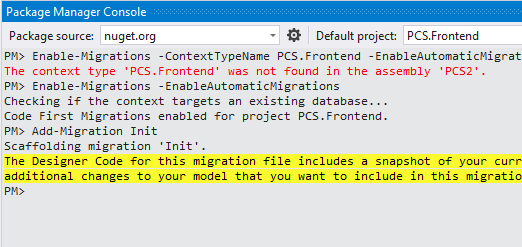
  1. Open up Migrations => Configurations – and add seed data. See the Migration.cs class in the sample.
  2. Back to Package Manager Console. Run the following two commands in order:
    1. Add-Migration-Init
    2. Update-Database-verbose


Note in the AspNetUsers table – I can see the dharrison row as our chosen admin.
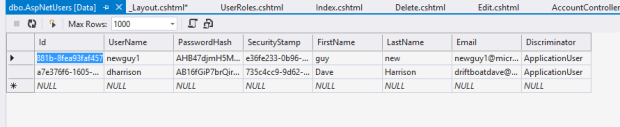
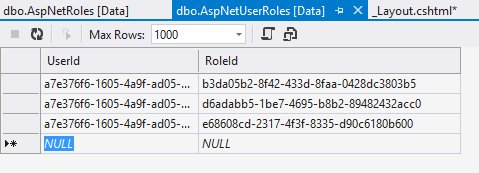
We have three roles available to us:


UserRoles contains links to each of these:


Now you can control access in the Controller part of MVC by using attributes like:

[Allow Anonymous]

[Authorize(Roles = “x”)]

For example see my HomeController class below. This lets the Index access be pretty much wide open, but the About and Contact screens are locked down.


public
class
HomeController : Controller

{


public
ActionResult Index()

{


return View();

}


//see the fanciness below. We’re screening off all but authorized users from the About and Contact pages.

[Authorize(Roles = “Admin, CanEdit, User”)]


public
ActionResult About()

{

ViewBag.Message = “Your application description page.”;


return View();

}


[Authorize(Roles = “Admin, CanEdit, User”)]


public
ActionResult Contact()

{

ViewBag.Message = “Your contact page.”;


return View();

}

}

}


In the web.config I set up access so the root folder is pretty much wide open- but the Forms subfolder is locked down:

<location
path=Forms>

    <system.web>

        <authorization>

<allow
roles=Admin, CanEdit, User/>

            <deny
users=*/>

        </authorization>

    </system.web>

</location>


<system.web>


<authorization>

<allow
roles=Admin, CanEdit, User/>

</authorization>