Year: 2014

PowerPivot and the age of BI

So, I have this fatal weakness for data warehousing. OLAP is way cool! That being said, I HATE spending time in reporting tools. Excel is great… like 15 years ago. I want to drop tables out there in the DW, and hand it off for others to do the less-glamorous (and never-ending) work of report-writing and analysis. Every developer has to constantly fight against being pigeonholed as a “report developer” – to the point where in the past I’ve avoided putting SSRS on my resume. It’s just to easy to get sucked into that world – there’s always a need for report analysts, and it’s just not as creative as the application/database design work we love. Get in and get out, that’s my motto!

So, PowerPivot is super cool. This is a free add-in to Microsoft Excel, and it couldn’t be easier. Once data is delivered I can unleash my users on our unsuspecting data – it’s truly self-service – and work on bringing more data into my warehouse for them as requests spiral, giving me more power and money! Bwah-hahahaha!

I started with a handy dandy star schema – with a central fact table and a couple tables off of this. Here’s a nice script for creating a date dimension:dim date

From this, I generate a table every day that’s optimized for Excel to pull from. By this I mean, it’s one table, very heavily indexed. (I played around with having one Excel spreadsheet hold Purchase Orders, Work Orders, and this central table – and was treated to a ton of ‘exceeded connection’ errors and bad performance. Bad Dave for being greedy! So, this ended up being three spreadsheets.)

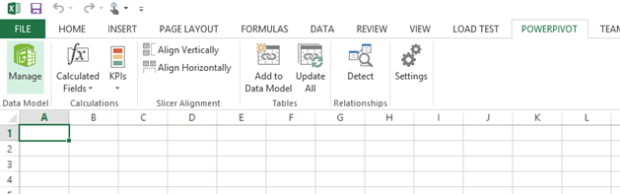
I go into Excel and click on the PowerPivot menu item, and select Manage.
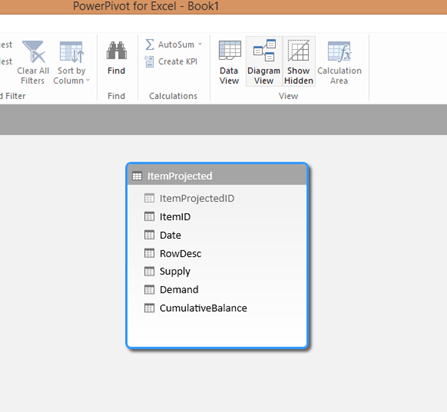
From here I select the From Database option and enter my connection info to my SQL Server box, and select my target table. Now I’m staring at this window:

This is our chance to hide or format contents. Here I right click on ItemProjectedID and hide that – it’s an identity field that the users we’ll never need – and if I wanted to I could change the format of the Supply/Demand/CumulativeBalance to Decimal.

It’s also worth noting that there’s a schema view. Here’s where I could add a hierarchy or a calculated field to dimension tables (like that Date dimension).
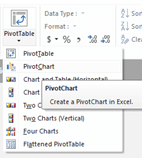
When I’m good and ready and the data table looks good, I select the PivotTable button. I could insert a split window with a chart at the bottom – but since our users just want a simple chart in this case, I’ll pick PivotTable.
Hmm. Now I’m seeing the below.
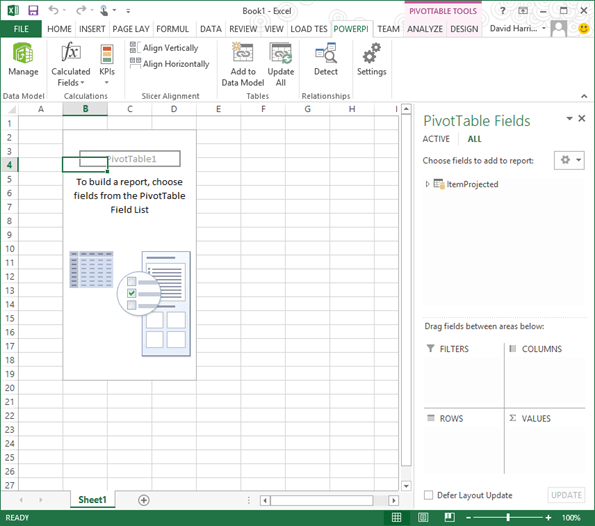
Let’s go crazy. Expand your data table – in my case I dragged on my Supply, Demand, and Cumulative number fields to the Values area on the lower right of the page. Then I dragged some of my descriptive rows (like ItemID, Date, and the RowDesc field) to the Rows area. Now I’m seeing this:

Muck around with the format a little bit. I found that when new fields dropped into a table I’d have to reconnect as if it was a new table – which is such a pain it’s better to create a new spreadsheet. But charts and graphs are awesome using this tool – think dashboarding – and if you save your XLS sheet out to a SharePoint document library (assuming your SP admin allows the Excel plugin) it looks and acts like a fancy-dancy dashboard with slicers:
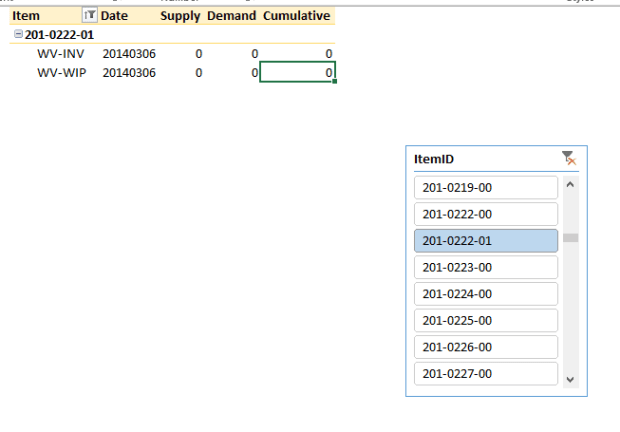
The best part is, I don’t need to muck around with writing reports. I gave my users a table – and exposed it to them using Excel, a tool they know and are familiar with. They can drag and drop values and play with it as they see fit. I guarantee you, your users will love you – and you’ll be able to get back to the “real” work of writing data flows and fancy-schmancy UI’s.

Data warehouse design notes

It bears repeating, but every company I’ve ever worked for ends up doing data warehousing wrong – the failure rate must be close to 90%! And it really comes down to two mistakes:

  1. Trying to solve every problem right out the gate.
  2. It’s a slippery road from star schema -> snowflake -> hellhole.

In short, if you try making it too big or too fancy, you’re screwed. How do you avoid this?

  1. Start with a simple date dimension and one very simple report use case.
  2. Use this to get your tooling straight, including your BI / self service report tools.
  3. THEN start growing out more dimensions and more fact tables. But beware! Have an architect around who’ll beat people over the head when they want to start chaining tables together (i.e. turning it back into a normalized system). It’s my personal belief that a set of data marts, each serving a specific purpose, are FAR more useful and easy to maintain than a Goliath system that pleases no one.

I’ve attached the SQL for building out a Date dimension – this is the one dimension that’s a constant in every DW I’ve worked with. It’s a great big flat table representing every date you’ll ever need – so the database won’t have to think when you want to slice data by quarter (for example) or to find the first day of the week of a year.

Helpful Videos and Links on PowerBI and PowerPivot

Admin database revisited…

I’ve attached a fresh copy of the Admin database SQL. I found this an easy-peasy method of adding backups and making databases self-service.

Admin database setup

Here’s the steps – there’s a more detailed blog article on this elsewhere on my site –

1. create a database called ‘Admin’

2.

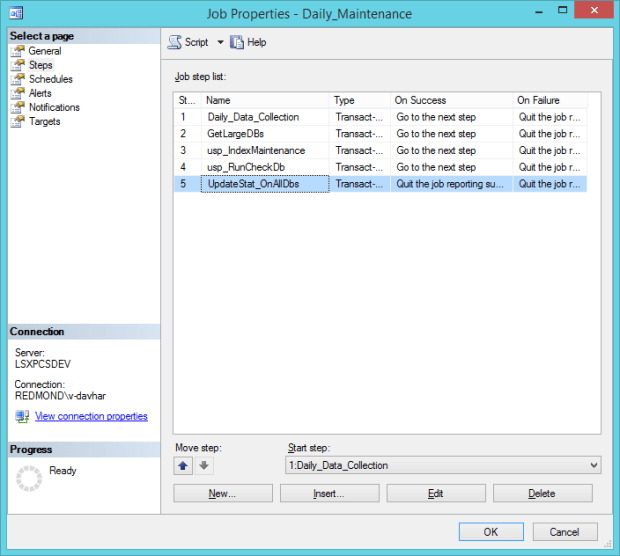
setup a weekly job runnning the following steps – either as a sproc or as a set of steps (recommended)

    1. EXEC dbo.Daily_Data_Collection – fills daily report

    2. EXEC GetLargeDBs (index fragmentation pt 1)

    3. EXEC usp_CollectFragmentation – index fragmentation pt 2)

    4. exec usp_IndexMaintenance – can run once a day, or weekly

    5. EXEC usp_RunCheckDb – runs checkdb on all db’s over 50 gb

    6. exec usp_UpdateStat_OnAllDbs – update database statistics


3. Get backups going:

    1. enable adavance options if not enabled on MASTER

        EXEC sp_configure ‘show advanced options’, 1

        RECONFIGURE

        EXEC sp_configure’xp_cmdshell’, 1

        RECONFIGURE

    2. Then set up a job weekly for System –

        EXEC usp_Backup_db @path = ‘C:\Program Files\Microsoft SQL Server\MSSQL11.MSSQLSERVER\MSSQL\Backup\’, @dbType = ‘System’, @bkpType = ‘Full’, @retention = 1, @liteSpeed = ‘N’

        And a similar one for User:

        EXEC usp_Backup_db @path =’C:\Program Files\Microsoft SQL Server\MSSQL11.MSSQLSERVER\MSSQL\Backup\’, @dbType = ‘User’, @bkpType = ‘Full’, @retention = 1, @liteSpeed = ‘N’

Do these things and you’ll have an Admin database that tracks the health of your system, and a more healthy set of indexes/backups.

SSIS goodness… kind of.

Man, it’s been a WHILE since I’ve worked with SSIS packages. Why, I remember when it was part of something called Business Intelligence Development Studio- and before that something else… now its part of SQL Server Data Tools, whatever that means. Still looks the same though as good ol’ SSIS (and DTS before that.) And there’s a part of me that enjoys it… most of me though just wants to wash my hands of the “plumbing” and get back to REAL programming. Something about writing VB code (Yes, I KNOW C# is available, you’re still working in a dated IDE!) just makes me feel icky.

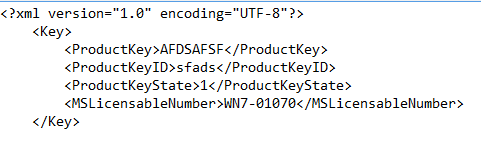
Here’s the process I hacked out. yes, I’m sure there’s a more elegant way to do it – but I was done in a few hours, and it seems elegant. I’m receiving an XML file like this:

This is an XML fragment, not a true XML document –it’s missing a root node. (I.e. should be <Keys><Key>, not just <Key>.) So, if you try to do a data transform directly against this, you’ll end up with no source columns.

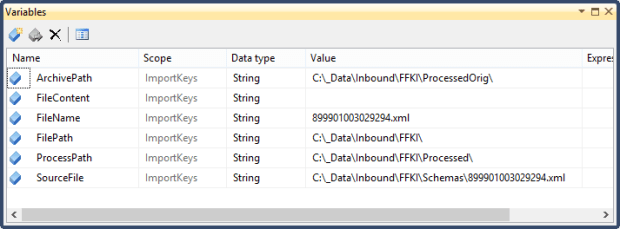
Create a SSIS package with the following variables:

So, I added a Script Task with the following variables passed in as R/W:

And the following script:


public
void Main()

{


String ErrInfo = “”;


String FilePath = Dts.Variables[“User::FilePath”].Value.ToString()+ Dts.Variables[“User::FileName”].Value.ToString();


//MessageBox.Show(“Filename: ” + FilePath);


try

{


String FileContent; //Variable to store File Contents

FileContent = ReadFile(FilePath, ErrInfo);


if (ErrInfo.Length > 0)

{

Dts.Log(“Error while reading File “ + FilePath, 0, null);

Dts.Log(ErrInfo, 0, null);

Dts.TaskResult = (int)ScriptResults.Failure;


return;

}


//FileContent Before Replace;


//MessageBox.Show(FileContent);


//Find and Replace –> Modify WHERE clause

FileContent = FileContent.Replace(


“<Key>”,


“<Keys><Key>”

);


FileContent = FileContent.Replace(


“</Key>”,


“</Key></Keys>”

);


//FileContent After Replace;


//MessageBox.Show(FileContent);

Dts.Variables[“User::FileContent”].Value = FileContent;


String ArchivePath = Dts.Variables[“User::ArchivePath”].Value.ToString() + Dts.Variables[“User::FileName”].Value.ToString();// +@”\Processed\” + Dts.Variables[“User::FileName”].Value.ToString();


String ProcessPath = Dts.Variables[“User::ProcessPath”].Value.ToString() + Dts.Variables[“User::FileName”].Value.ToString();


//MessageBox.Show(ArchivePath);


//Write the contents back to File


if (File.Exists(ProcessPath))

{


File.Delete(ProcessPath);

}

WriteToFile(ProcessPath, FileContent, ErrInfo);


if (ErrInfo.Length > 0)

{

Dts.Log(“Error while writing File “ + ProcessPath, 0, null);

Dts.Log(ErrInfo, 0, null);

Dts.TaskResult = (int)ScriptResults.Failure;


return;

}


//and move the orig files


if (File.Exists(ArchivePath))

{


File.Delete(ArchivePath);

}


File.Move(FilePath, ArchivePath);


}


catch (Exception e)

{

Dts.Log(e.Message, 0, null);

Dts.TaskResult = (int)ScriptResults.Failure;

}

}


public
String ReadFile(String FilePath, String ErrInfo)

{


String strContents;


StreamReader sReader;


try

{

sReader = File.OpenText(FilePath);

strContents = sReader.ReadToEnd();

sReader.Close();


return strContents;

}


catch (Exception e)

{


MessageBox.Show(ErrInfo);

ErrInfo = e.Message;


return
“”;

}

}


public
void WriteToFile(String FilePath, String strContents, String ErrInfo)

{


StreamWriter sWriter;


try

{

sWriter = new
StreamWriter(FilePath);

sWriter.Write(strContents);

sWriter.Close();

}


catch (Exception e)

{


MessageBox.Show(ErrInfo);

ErrInfo = e.Message;

}

}


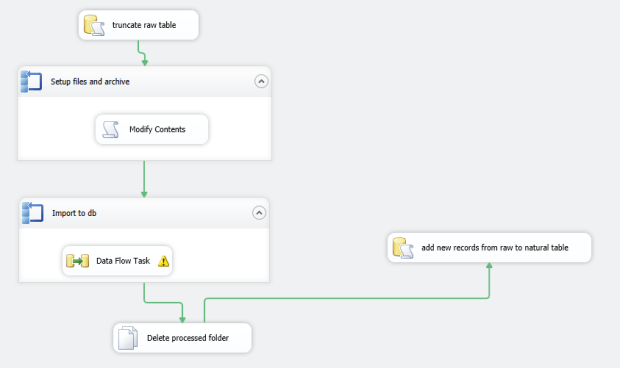
At this point you’ve kicked out a modified version of the XML fragments – only they’re readable now – to a subfolder called Processed. Add a new for-each loop on this folder, and set up your XML source on this:

Above I generated the XSD file from a generated XML file, and copied the file out to a new folder called Schemas. (Yes, it’s great to run this first using hardcoded values for the XML file versus a for-each loop to reduce complexity.) Clicking on Columns then gives us a view of the sequence columns, just like if this was in a familiar SQL-to-SQL operation.


Then you run a File System task to delete the contents of the Processed folder – you’re done with them now – and fire off a sproc to add any new records from your Raw table to a more formatted, validated regular table in SQL. Voila!!!


More Links


Monitoring your SQL

I’ve seen situations where monitoring SQL falls into a kind of black hole. The DBA’s feel (somehow) that this is beneath their notice; they’re focused on strategic issues or otherwise busy – maybe riding horses and pointing majestically off into the distance. And developers feel that their responsibility is to deliver good code; monitoring the health of the SQL boxes isn’t something they have time (or the desire) to do. As a result, the application’s performance and reliability takes a hit.

From my perspective, I’d like a little insurance as a developer so I can definitively point to the backend environment as the cause of a performance bottleneck. And it’d definitely be helpful if I was collecting execution times so when we make sproc changes we can determine if they’re harmful to the health of the system. As a monitoring checklist on your SQL boxes, you should be checking the following on a daily basis:

  1. Are your backups working?
  2. Have you set up automated restores and are you monitoring success/fails?
  3. Are you checking error logs?
  4. Are you checking for failed jobs?
  5. Is there sufficient free disk space for production databases?
  6. Did you run integrity checks and check index health? This continually requires finetuning.
  7. Did you check failed login attempts for security?

Let’s face it – you’re NOT going to log onto QA or PROD every day and run SQL scripts manually. Other interests beckon! But, it would be great to log this stuff.

So, check this out: Admin creation script

Use this SQL here to set up automatic monitoring. Once you do this, you’ll have a set of tables collecting data over time and a daily report that will show you all the good stuff for the day. It wouldn’t take much work to drop this into a ListView on a website to make this even easier to check. It also, incidentally, will fix any indexes that are excessively fragmented and update statistics.

To implement it, just create a database called “Admin”. Run the attached creation script, and then create a set of views in any target databases to collect fragmentation data. (There’s probably a more elegant way to implement this last piece; I kinda banged this out over a few hours and then moved on.) Create a set of jobs then with the following schedules:

  1. A Daily Report job – run dbo.Daily_Data_Colleciton
  2. A Daily Maintenance job – run dbo.Daily_Database_Maintenance
  3. A Weekly Maintenance job – run dbo.Weekly_Database_Maintenance

#2 and #3 could be combined if desired, I imagine as a weekly run on a Saturday. Right here, combined with a database backup (and an automated restore) you’re well ahead of the game.

Didn’t take much work, and I found pretty quickly that 1) we needed to add a ton more indexing, especially as our table would start to bloat – and that the Optimize for Ad Hoc Workloads flag was (incorrectly) set to 0. And our SQL Server Agent was set to manual startup. no Bueno!!

Notes:

  • I mucked around a little with using WMI to view not just SQL’s portion of CPU stress, but the entire CPU demands on the production SQL box. However, on most environments, SQL is going to be the bulk of the stress. It didn’t seem worth it – and having to turn on CLR on the SQL box isn’t a great solution. The DVM’s that come with SQL Server are fine. If you wanted to do this, it’s easy and runs fairly fast – just copy the DBStats.Database.CLRFunctions.dll from the 9781439247708_CH06 code download from this source (Chap06 folder) and copy it out to the same Data folder that you use for all your system databases (for me this was H:\MSSQL11_0.MSSQLSERVER\MSSQL\DATA ).
  • There’s a great free reindexing/statistics tool that I want to look into: http://ola.hallengren.com/sql-server-index-and-statistics-maintenance.html
  • Note that the fragmentation script from the Apress book I referenced above was fubar – went with a riff on this article http://www.sqlservercentral.com/Forums/Topic499564-357-1.aspx instead.
  • And I can’t recommend highly enough the DMV’s and SQL found at http://sqlserverperformance.wordpress.com.. This guy is a genius and if you want to start digging deeply into why your server is lagging, this is a great place to begin. I also really like the section on looking for bad NC indexes or missing indexes.
  • Future refinements: Add Backup information to the daily job.

Some explanatory text of the embedded SQL:

  • usp_RunCheckdb
    • this runs and if the db size is less than 50 GB it runs DBCC CHECKDB(DBNAME) WITH NO_INFOMSGS
  • usp_Collect_login_trace
    • See the LoginAuditTrace table – has records tracking the last login.
  • updateStat_onAllDbs
    • runs exec UpdateStat_OnAllDbs – which basically fires off execute sp_updatestats on every database that’s read_write, online, and multi-User and not in master/model/tempdb
  • usp_IndexMaintenance – runs indexes that are excessively fragmented. A nifty set of SQL here!
  • and an index fragmentation job with two steps:
    • GetLargeDbs (inserts into a table Auto_Exception_Lst a set of databases >50GB
    • usp_CollectFragmentation
  • And last but not least –
  • Other sprocs:
    • GetSysConfigDetails – checks the server parallelism and AWE. Run rarely.
    • sp_GetBackupStatus – old, replaced by other jobs to check backup – usp_BackupDB_Info
    • usp_Alter_Index
    • usp_BackupDB_Info – shows most recent backup for each db.
    • usp_cluster_loadbalance_checker – checks if load balancing is running normally on SQL Server clusters.
    • usp_CollectFragmentation – collect fragmentation information (a good alternative)
    • usp_fileconfig – shows the drive location and size of each logical filename in SQL.
    • usp_GetLastRunCheckdb – shows the last run of CheckDB for each db. Shouldn’t be necessary with usp_RunCheckDb above.
    • usp_IndexDefrag – runs a rebuild/reorganize on fragmented indexes. Superceded by usp_IndexMaintenance.

Taking TDD Seriously

There’s a great line from the Bible book of Genesis where a servant to Pharaoh said, “It is my sins that I am mentioning today…” I’m going to mention one of my sins, and record what I plan to do about it in the future.

In a previous gig, one of the first things I did as project manager was to meet with the head of QA – we had a large team of about five full-time testers. He had a long laundry list of complaints, beginning with “Testing is an afterthought here.” Even though we had such a large team – nearly 16 – development raced ahead of unit and functional testing. Our unit testing was running about 6-8 weeks behind development, and our code coverage was AWFUL.

I ‘fixed’ this by integrating development and testing so we would meet together daily, by having weekly 1:1’s with QA, and sending out code coverage/unit and functional test coverage #’s as metrics in weekly status reports. I even went so far as to host a company-wide summit on testing best practices. Yet, though things improved, we still weren’t working in synch. Major regression issues would crop up on nearly a weekly basis. We had to hire an overseas team to test the application in different browsers for issues that our automated testing wasn’t catching. It still very much felt like we were working as two teams – one pulling against the other.

Of course, the issue started with me. As a developer that grew up in the era before TDD, I still viewed testing as being secondary to development – and as a “like to have”, one that often got in the way of implementation. As a result, we had two teams with implicit values – the “alpha team” of ace developers that were shoveling out code and hucking it over the fence, and the QA scrubs that were playing cleanup.

Of course, I couldn’t have been more wrong. Testing is everyone’s job, and if you’re a competent developer you need to write unit tests alongside your code. Look at the graph below:

That’s two teams from the same company working on projects of similar scale. Notice the team that implemented TDD took almost twice as long in development. But look at the lower time in handling regression and refactoring code! And which customer do you think was happier in the long run with a higher quality product being deployed the first time?

Legacy code is untested code – as Michael Feathers wrote in his great book “Working Effectively With Legacy Code“. In some projects, we’re almost leveraged into writing legacy code from the get-go due to timing demands. But that doesn’t excuse us as responsible professionals from not going back after the push and creating a robust test project.

I’m still not sure if TDD is the cure-all that some say; there may be a middle path that hits a better balance between fast development and 100% code coverage. But I do pledge to take a more in-depth look into testing, and fold TDD into my work practices.